

What Gets Logged
Logs capture real usage from every channel: the web app, the API, and apps opened from the WEB APPS list on Home. For Workflow apps, runs started by triggers are logged too. End-user feedback (thumbs up/down and comments) is stored with the messages it refers to. Test sessions from the app editor are excluded for Chatflow and Workflow apps (Preview and Test Run). For other app types they are listed, under the team member’s account.Browse Logs
Each row is one conversation or one run. Most columns explain themselves, but a few deserve context:- Title is generated from the conversation’s first message.
- End User or Account shows a session ID for web app and API usage, or the team member’s account for usage inside Dify.
- User Rate counts end users’ likes and dislikes; Op. Rate (operator rate) counts your team’s. Both aggregate across the whole conversation.
- Trigger By (Workflow apps) shows what started each run:
- WebApp: The published web app, or a call through the API
- Webhook: A webhook trigger receiving a request
- Schedule: A schedule trigger reaching its scheduled time
- Integration: An event from a connected integration
Inspect a Conversation
Click a row to open the full message thread. When you hover over an answer, you can:- See its token spend and latency.
- Open the log behind it: the raw prompt, an Agent app’s tool iterations, or a Chatflow message’s node-by-node trace.
- Rate the answer as team feedback; a dislike can carry a comment explaining what went wrong. Team ratings fill the Op. Rate column, separate from end-user feedback.
- Add an annotation pairing the question with an improved reply. See Annotation System for how annotated replies take effect.
Inspect a Run
For Workflow apps, click a run to open its result, its inputs and outputs with status and token totals, and a node-by-node trace that pinpoints where a run failed or slowed down. To reproduce an issue, click Test With Params: the workflow re-runs in the editor with this run’s inputs.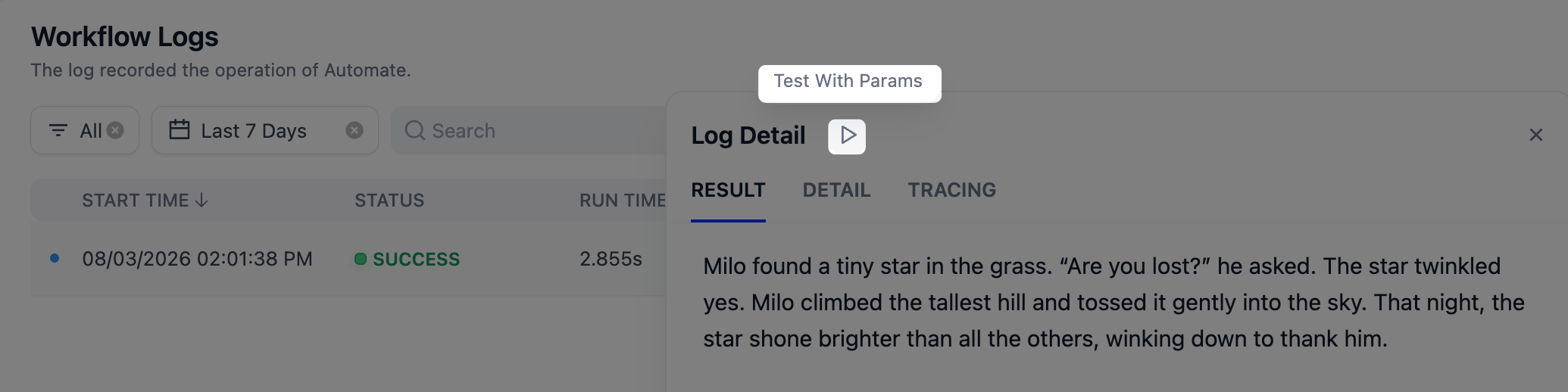
Log Retention
On the Sandbox plan, logs of every type are retained for 30 days. Older entries are permanently deleted—upgrading later doesn’t recover them. On Professional and Team, retention depends on the log type:- Conversation logs (Chatbot, Chatflow, Agent, and Text Generator apps): retained for the duration of the active subscription.
- Workflow run logs (Workflow apps): recent runs stay on the Logs page; runs older than about three months move to monthly archives you can download as CSV files. See Download Archived Logs for details.
Download Archived Logs Professional Team
Archived runs aren’t lost: once a month, workflow run logs that have aged past about three months are packed into a monthly archive for the whole workspace, and every archived month is available for download. Only the workspace owner and admins can download archives in Settings > Archived logs:- Click Prepare download for the month you need. Preparation runs in the background, so you can leave the page and come back.
- When the button turns into Download, click it to save the file. A prepared download stays available for 24 hours; after that, prepare it again.